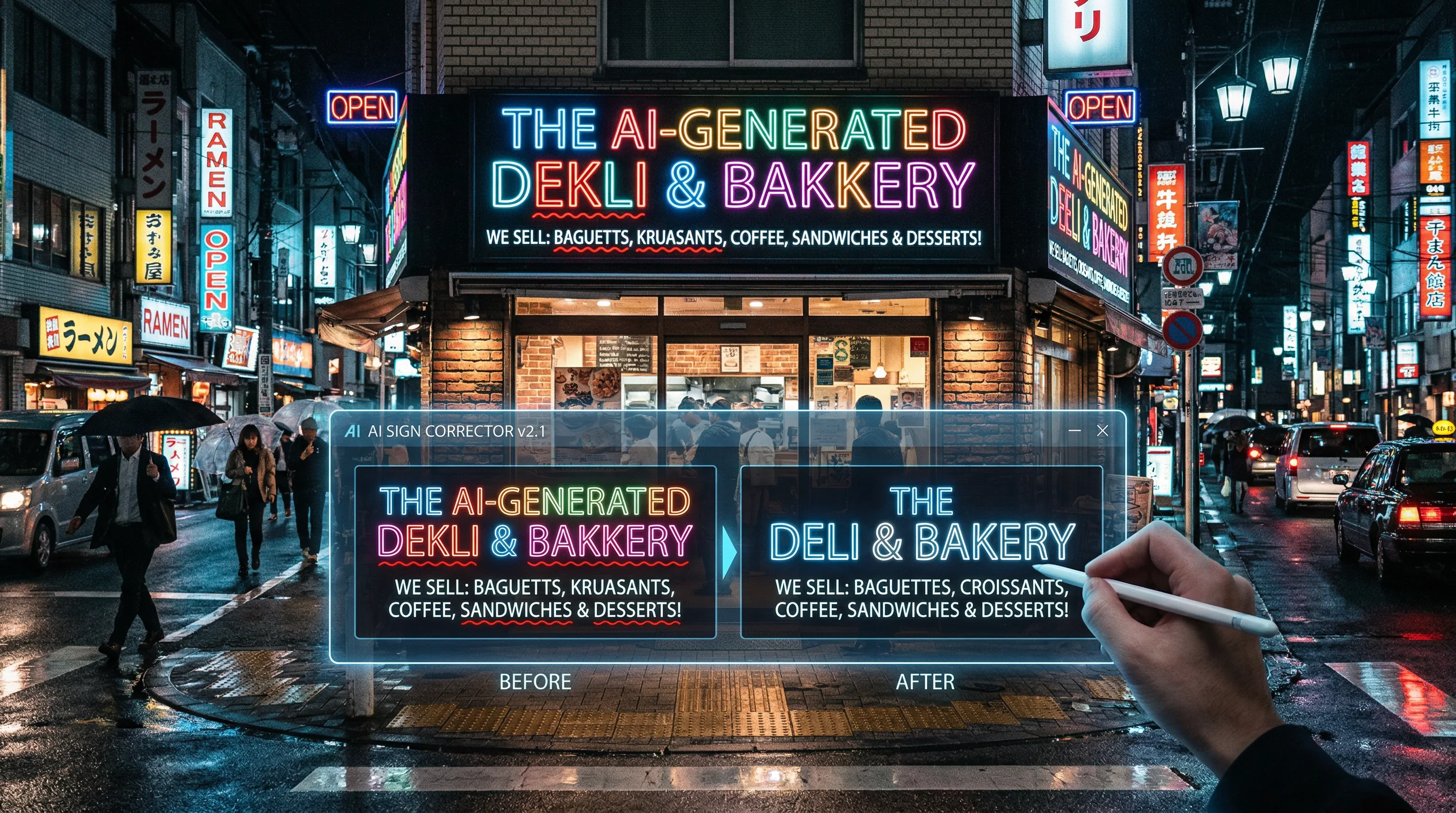
Why AI Misspells Text in Images (and What to Do About It)
AI misspells text in images because image generation models process letters as visual shapes, not language. They don't understand spelling — they approximate what words look like based on patterns in their training data.

The Artifio editorial team publishes research, tutorials, and release notes covering image, video, and audio generation models. All posts are reviewed by an editor before publishing.
AI misspells text in images because image generation models process letters as visual shapes, not language. They don't understand spelling — they approximate what words look like based on patterns in their training data. This is why your AI-generated logo says "Artifo" instead of "Artifio," your motivational poster reads "Belive in Youself," and your product mockup has garbled text that looks almost but not quite like English.
This isn't a bug that will be patched tomorrow. It's a fundamental architectural limitation of how current image generation works. But there are effective workarounds, and newer models are making progress.
Why AI Image Generators Can't Spell
The technical explanation is surprisingly straightforward, and understanding it helps you choose the right workaround.
Images vs. Language: Different Processing
Text AI models (the ones that write essays) process language as tokens — chunks of characters with meaning. They understand that "B-E-L-I-E-V-E" spells a specific word.
Image AI models process everything as pixels and visual patterns. When they encounter text in training images, they learn what the visual pattern of letters looks like, not what the letters mean. The model learns that an "E" is a shape with horizontal lines, but it doesn't learn that "BELIEVE" requires exactly those seven characters in that exact order.
According to research at Google DeepMind, bridging this gap between visual and linguistic understanding is an active area of research in multimodal AI — models that process both images and language simultaneously.
The Tokenization Problem
When you type "write BELIEVE in large letters" in an image prompt, the model tokenizes this as a description of what to generate, not as a letter-by-letter spelling instruction. It interprets "BELIEVE" as "a word that looks roughly like B-E-L-I-E-V-E" and approximates accordingly.
Short, common words succeed more often because the model has seen them rendered correctly in thousands of training images. "LOVE," "STOP," and "OK" are often rendered correctly. "ENTREPRENEURSHIP" almost never is, because the model hasn't seen enough training examples of that exact visual pattern.
Workarounds for Clean Text in AI Images
Until the technology catches up, these workarounds produce professional results.
The Overlay Method: Add Text After Generation
The most reliable method by far: generate your image without any text, then add typography using a design tool. This gives you complete control over font, size, color, placement, and — crucially — spelling.
Workflow:
- Generate your image with no text elements (add "no text, no words, no letters" to your prompt or negative prompt)
- If you need space for text, prompt for "clean area" or "negative space" where text will go
- Import the image into a design tool
- Add your text with professional typography
- Export the final composite
This approach works for every use case: logos, social media graphics, product packaging, posters, and presentations. It's more work than having AI render the text, but the results are consistently professional.
Models That Handle Text Better
Some newer-generation models have significantly improved text rendering. They use architectural innovations that bridge the gap between visual and linguistic processing. While they're not perfect, they succeed more often — especially with short text.
In our own July 2026 battery, FLUX 2 Pro, Nano Banana 2, GPT Image 2, Seedream 4.5, Seedream 5 Pro and Grok Imagine all rendered a multi-word storefront sign correctly on the first attempt (full results below). Test with your specific text requirements: your brand name, taglines, and any recurring text elements.
Short Text Strategies That Work
When you need AI to render text directly in the image, these strategies improve your odds:
- Limit to 1-4 common words: "SALE," "NEW," "OPEN," "YES" work far more reliably than longer phrases
- Use uppercase: Capital letters have simpler, more distinct shapes that models render more accurately
- Repeat in your prompt: "The word LOVE written in large white letters, spelling L-O-V-E"
- Specify font style: "Bold sans-serif" or "clean block letters" gives the model a clearer visual target
- Generate multiple versions: Among 10 generations, 2-3 will often spell the word correctly
We Tested It: 6 Current Models, Same Sign Prompt (July 2026)
Advice about AI text rendering goes stale fast, so instead of repeating older wisdom we ran the test ourselves. In July 2026 we gave the leading image models on Artifio the same storefront-signage brief (multi-word, mixed-size text, the classic failure case) plus a harder small-print test: a vintage seed-packet label with sub-headline micro-copy. Same prompts, first attempts, no retries and no cherry-picking.
Prompt used (signage test): "A modern creative-studio storefront sign that reads 'ARTIFIO' with smaller text '100+ AI MODELS. ONE WALLET.' underneath, clean geometric lettering, warm evening light"
| Model | Main sign text | Small / secondary text | Notes |
|---|---|---|---|
| FLUX 2 Pro | Every word correct | Clean | Splits long lines into a sensible type hierarchy without corrupting words |
| Nano Banana 2 | Every word correct | Best small text we tested | Seed-packet micro-copy stayed crisp; window lettering in a busy scene wobbled slightly |
| GPT Image 2 | Every word correct | Reliable down to sub-headline sizes | Zero corrupted words in our tests; watch its warm amber cast |
| Seedream 4.5 | Every word correct | Clean | The most literal: you get exactly the sign you asked for |
| Seedream 5 Pro | Every word correct | Clean | Flawless art-deco sign inside a fully composed street scene |
| Grok Imagine | Every word correct | Degrades to letter-shaped noise | Main subject text is fine; a side-door sign in our test was gibberish |
Two findings worth calling out:
1. The main-subject text problem is largely solved. Every model above rendered the primary multi-word sign correctly on the first attempt. If your last bad experience with AI text was more than a year ago, re-test before defaulting to the overlay method.
2. Secondary text is the new frontier. The failure mode has moved: models now nail the sign you asked for, then garble the incidental text they invent around it (windows, side doors, background posters). If your scene will contain text you did not specify, either specify it, crop it, or plan to retouch it.
We host every output from this battery on our own CDN with the exact prompt attached. See the sample sections on each model page linked above; we re-run this battery periodically and update those pages as results change.
What About Editing Text in an Existing Image?
The best fix for misspelled text is often a second pass rather than a full regeneration, so we also tested the image-editing path. Asked to recolor a sign's gold lettering to neon blue and keep the rest exactly the same, Seedream 5 Lite (image-to-image) reproduced every word perfectly in the new treatment, where most editors corrupt letterforms on re-render.
The catch: it recomposed the rest of the storefront. New framing, awning gone, a display case added. Current editing models are creative re-renderers guided by your image, not surgical text editors. Use them to fix text when the surrounding composition is flexible, and use a design tool when it is not.
When AI Text in Images Actually Works
Despite the limitations, there are scenarios where AI text rendering is good enough:
- Decorative text: When exact spelling matters less than visual impact (abstract art, background texture)
- Foreign script simulation: When you need the look of Japanese, Arabic, or other scripts for atmospheric purposes
- Handwritten style: Imperfect handwriting is more forgiving of AI's text approximation
- Very short common words: Single letters, numbers, and 2-3 letter words succeed most of the time
- Blurred/background text: Text that's intentionally out of focus or in the background of a scene
For these cases, AI text rendering can save time. For anything where legibility and accuracy matter — brand names, product information, calls to action — use the overlay method.
For broader image generation guidance, see our complete AI image generation guide. For related issues like anatomy problems, check our guide to fixing AI image hands. And for developing a distinctive visual style that doesn't need text to make an impact, see our unique visual styles guide.
The Future of Text in AI Images
Text rendering in AI images is improving faster than most other quality dimensions. Understanding where the technology is heading helps you plan your workflow accordingly.
Current Progress
The newest generation of models shows significant improvement in text rendering. Short phrases (2-4 words) now render correctly a majority of the time in some models. Single words, especially common ones, succeed at rates above 80%. This is a marked improvement from even a year ago, when any text in AI images was essentially a gamble.
The improvement comes from architectural innovations that give models better understanding of character-level structure. Instead of treating text purely as a visual pattern, newer approaches encode letter-level information that helps the model understand what it's trying to render.
Our July 2026 battery found main-subject text effectively solved across every current flagship we tested; secondary and incidental text is where models still fail.
What This Means for Your Workflow
In the near term, the overlay method remains the most reliable approach for any text that matters — brand names, calls to action, pricing, product names. But for decorative or atmospheric text (background signage, stylistic elements, mood-setting text), newer models are increasingly reliable.
Revisit your workflow every 6 months. Test the latest models on your specific text rendering needs. What required a workaround last year might work natively this year. The technology is improving at a pace where annual workflow reviews can reveal significant time-saving opportunities.
Model Comparison for Text Rendering
If you need text rendered directly in images, some models perform notably better than others. Without naming specific products, here's what to look for when testing models for text capability:
- Test with your brand name: Generate 10 images with your brand name as text. Count how many render it correctly.
- Test with varying lengths: Try 1-word, 3-word, and 7-word phrases. Note where accuracy drops off.
- Test with uncommon words: Common words like "SALE" or "NEW" render more reliably. Test with your specific product or brand terminology.
Keep a comparison chart of your results. The model that renders your brand name correctly 8 out of 10 times is the model you should use for text-heavy images — even if another model produces better overall image quality.
Practical Workflow: Creating Images with Text Elements
For images that need text, here's the most efficient current workflow:
- Design your text layout first: Decide what text goes where before generating any images
- Generate the base image: Prompt for the image with "negative space," "clean area," or "text placement area" where your text will go
- Export at high resolution: Generate at the maximum resolution available to maintain quality when compositing
- Add text in your design tool: Use professional typography that matches your brand guidelines
- Final composite adjustments: Color-match the text to the image, add subtle shadows or effects so text integrates naturally
This five-step process takes 5-10 minutes per image and produces results that look fully intentional and professional. It's the standard workflow for most professional AI content creators and eliminates text rendering frustration entirely.
Frequently Asked Questions
Which AI image model spells text correctly in 2026?
In our July 2026 first-attempt tests, FLUX 2 Pro, Nano Banana 2, GPT Image 2, Seedream 4.5, Seedream 5 Pro, and Grok Imagine all rendered a multi-word storefront sign with every word correct. Small print is harder: Nano Banana 2 and GPT Image 2 kept sub-headline text legible. Incidental background text is still the most common failure across all models.
Why can't AI write text correctly in images?
AI image models process text as visual patterns, not language. They don't understand spelling — they render approximations of what words look like based on training images. This is a fundamental architectural limitation.
How do I add text to AI-generated images?
Generate your image without text, then add text using a graphic design tool. This gives you complete control over font, size, color, and placement. It's more reliable than any in-image text rendering technique.
Will AI ever render text perfectly in images?
Progress is being made — newer models handle short text better than older ones. Some architectures are being specifically designed to integrate language understanding with image generation. Expect significant improvement in coming years.
What AI model is best for images with text?
Newer generation models have improved text capabilities. Test your specific text needs across multiple models. For critical text, the overlay method (AI image + design tool for text) remains the most reliable approach.
Can AI create logos with text?
AI can generate logo concepts and visual elements, but text in logos is often misspelled or distorted. Use AI for the visual concept, then recreate the text element manually in a vector design tool for clean results.
Find the AI image models that work best for your visual content. Explore Artifio's full lineup and compare results across providers.